The Channel Strip
A single channel can be switched between mono and stereo mode. The mode is set in the channel settings.
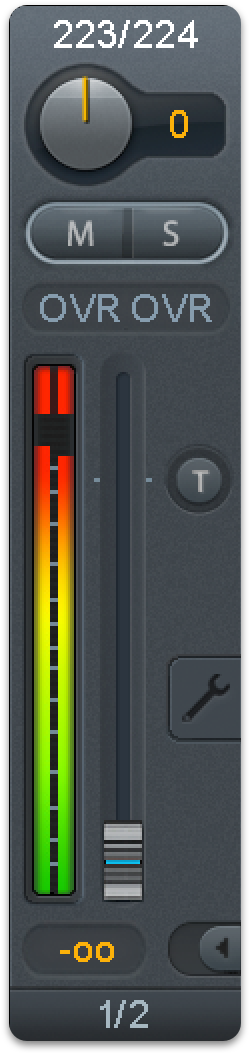
Channel name. The name field is the preferred place to select a channel by a mouse click. A double click opens a dialog to assign a different name. The original name will be shown when activating the option Names in the View Options.
Panorama. Routes the input signal freely to the left and right routing destination (lower label, see below). The level reduction in center position is -3 dB.
Mute and Solo. Input channels and playback channels each have a mute and solo button.
Numerical level display. Shows the current RMS or Peak level, updated twice per second. OVR means overload. The setting Peak/RMS is changed in the View Options.
Level meter. The meter shows both peak values (zero attack, 1 sample is enough for a full-scale display) by means of a yellow line, and mathematically correct RMS values by means of a green bar. The RMS display has a relatively slow time constant, so that it shows the average loudness quite well. Overs are shown in red at the top of the bar. In the Preferences dialog (F2) the Peak Hold time, the over detection and the RMS reference can be set.
Fader. Determines the gain/level of the signal routed to the current routing destination (lower label). Please note that this fader is not the fader of the channel, but only the fader of the current routing. Compared to a standard mixing desk TotalMix does not have a channel fader, but only Aux Sends, as many as there are hardware outputs. Therefore, TotalMix can create as many different submixes as there are hardware outputs. This concept is understood best in the Submix View, but more on that later.
Below the fader the Gain is shown in a numerical display field, according to the current fader position. The fader can be:
-
dragged with the left mouse button pressed
-
moved by the mouse wheel
-
set to 0 dB and −∞ by a double click. The same happens with a single click plus held down Ctrl key.
-
adjusted in fine mode by mouse drag and mouse wheel when holding the Shift key down
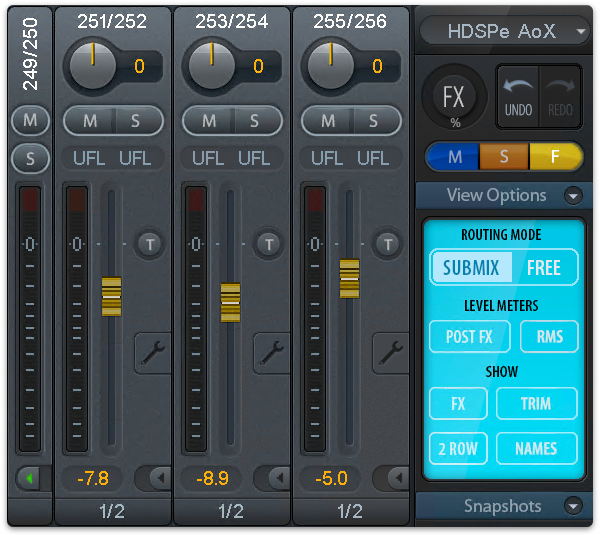 A Shift-click on a fader adds the fader to the temporary fader group. All faders now marked yellow are ganged and move simultaneously in a relative way. The temporary fader group is deleted by a click on the F symbol in the upper right of the window.
The arrow symbol at the bottom minimizes the channel width to that of the level meters. Another click maximizes it again. A mouse click with held Ctrl key causes all channels to the right to enlarge and minimize at once.
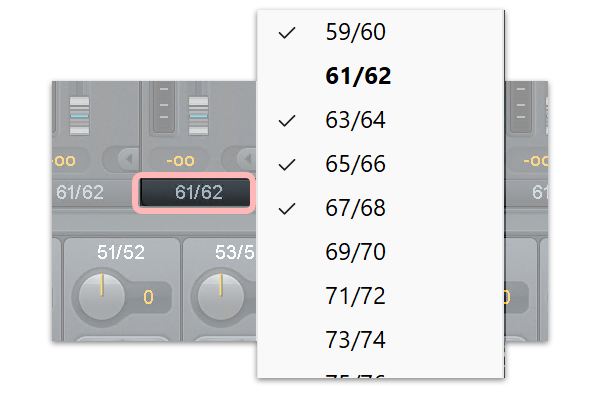 The lowest field shows the current routing target. A mouse click opens the routing window to select a routing target. The list shows all activated routings of the current channel by arrows in front of the listed entries. The current one is shown in bold letters.
An arrow is only shown with an activated routing. A routing is seen as activated when audio data is sent. As long as the fader is set to −∞ the current routing will be shown in bold letters, but not have an arrow in the front.
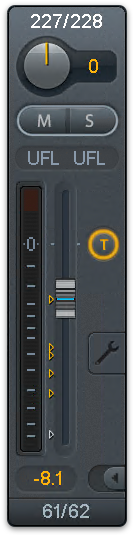 Trim Gain. After a click on the T-button one channel’s faders are all synchronized. Instead of changing only a single routing the fader affects all the channel’s active routings. For a better overview the faders currently not visible are indicated by orange triangles beside the fader path. When moving the fader the triangles also move to a new position, equalling the faders new settings.
Note that the fader button is set to the highest routing gain of all routings so that best control is offered. The gain (fader knob position) of the currently active routing (the submix selected in the third row) is shown as white triangle.
Background: TotalMix has no fixed channel fader. In case of the HDSPe AoX-M there are 128 stereo Aux sends, shown alternately as single fader within the channel strip. The high number of Aux sends enables multiple and fully independent routings.
In some cases it is necessary to synchronize the gain changes of these routings. An example is the Post fader function, where a change of the singer’s volume shall be performed identical to the volume change of the signal sent to the reverb device, so that the reverb level keeps its relation to the original signal. Another example is the signal of a guitar that is routed to different submixes, means hardware outputs, which gets much too loud during the solo part, and therefore needs to be reduced in volume on all outputs simultaneously. After a click on the Trim button this can be done easily and with a perfect overview.
As all channel’s routings change simultaneously when Trim is active, this mode basically causes the same behavior as a trim pot within the input channel, affecting the signal already before the mixer. That’s how this function got its name.
In the View Options / Show the function Trim Gains can be globally switched on and off for all channels. The global Trim mode is recommended when using TotalMix FX as live mixing desk.
The Context Menu. With a right click on the input, playback and output channels their context menus provide advanced functionality (these menus are also available in the Matrix, but only directly on the channel labels). The entries are self-explanatory and automatically adjust to where the click is performed. The input channels offer Clear, Copy input, paste the input mix and paste its FX. On a playback channel Copy, Paste and Clear the playback mix are available. On an output channel Copy and Mirror functionality for the current submix and copying of the FX settings is offered.
Settings
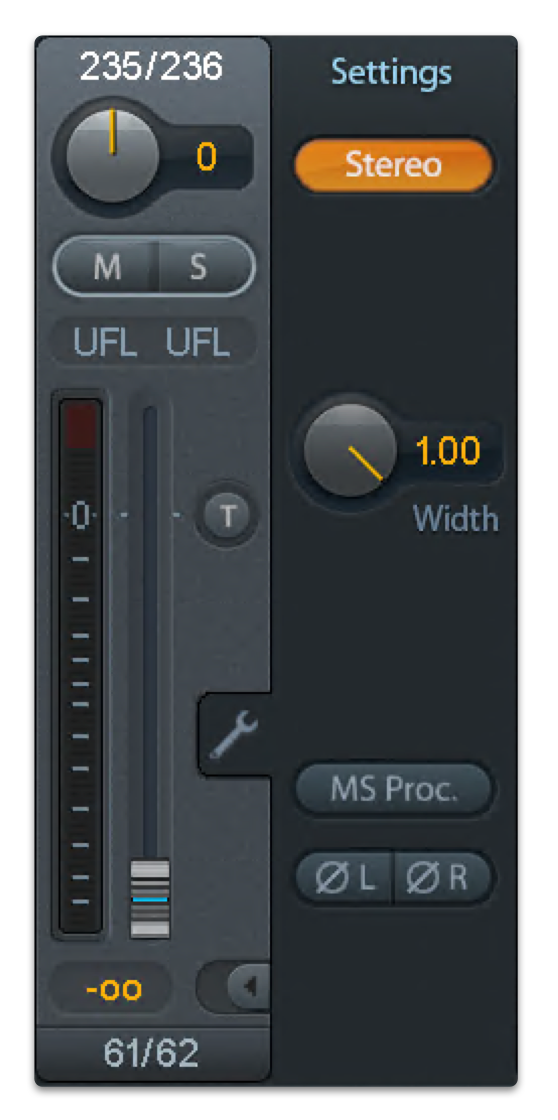 A click on the tool symbol opens the channel’s Settings panel. It includes these elements:
Stereo. Switches the channel to mono or stereo mode.
Width. Defines the stereo width. 1.00 equals full stereo, 0.00 mono, -1.00 swapped channels.
MS Proc. Activates M/S processing within the stereo channel. Monaural information is sent to the left channel, stereo information to the right.
Phase L. Inverts the phase of the left channel by 180°.
Phase R. Inverts the phase of the right channel by 180°.
Note: The functions Width, MS Proc, Phase L and Phase R affect all routings of the respective channel.
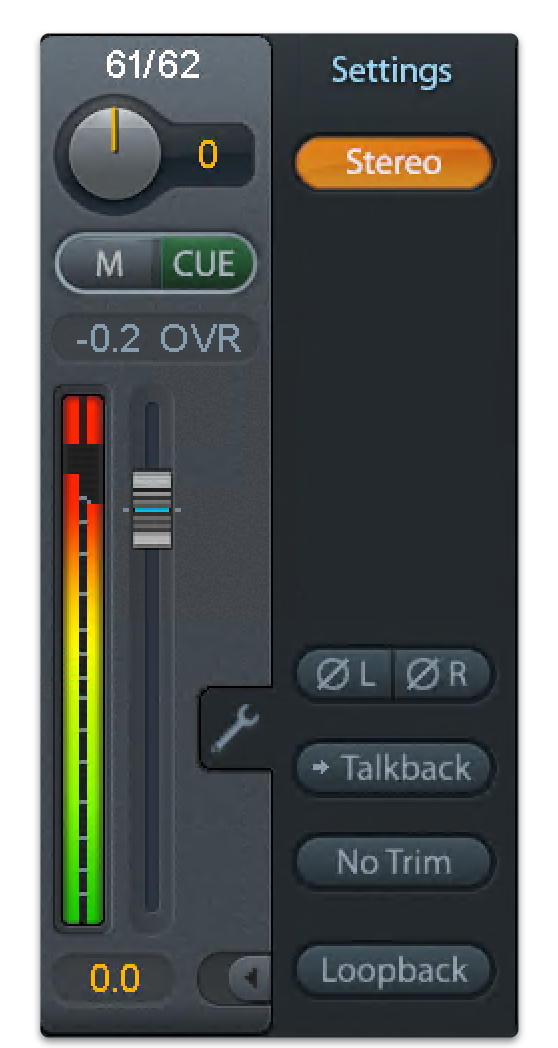
The Hardware Outputs have no width option, but two other options:
Talkback. Activates this channel as receiver and output of the Talkback signal. This way Talkback can be sent to any outputs, not only the Phones in the Control Room section. Another application could be to send a certain signal to specific outputs by the push of a button.
No Trim. Sometimes channels need to have a fixed routing and level, which should not be changed in any case. An example is the stereo mixdown for recording of a live show. With No Trim active, the routing to this output channel is excluded from the Trim Gains function, therefore is not changed unintentionally.